

Attribute Tool
Attributes let you control how data from a Partner Solution's API response gets translated into values you can reference in your workflows. You manage them from an integration's Attributes tab in Marketplace — browsing Alloy's global library of pre-built attributes, and creating, duplicating, or editing your own.
This is a different feature from workflow-level Custom Attributes (Published Attributes), which pass values between workflows rather than shaping a single integration's API response. If that's what you're looking for, start there instead.
How it works
Open a solution in Marketplace and select its Attributes tab. An attribute translates a raw field from that integration's API response into a clean, human-readable value — for example, a raw emailRisk.score field becomes the attribute Email Risk: Score. Raw API fields are code-style paths; attributes have Title Case, human-readable display names built on top of them.
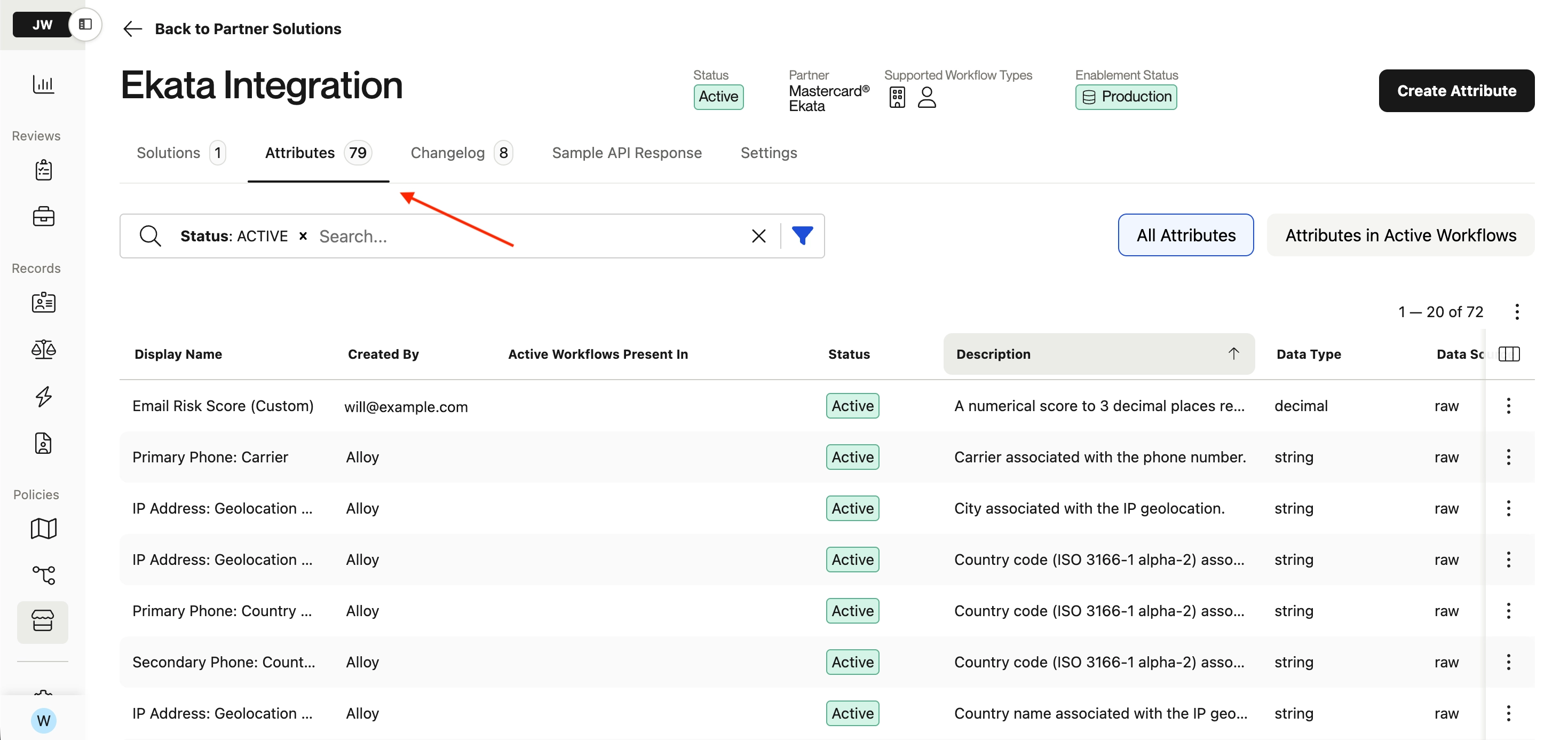
Each attribute has the following fields:
| Field | Description |
|---|---|
| Created By | Whether the attribute was created by Alloy or by your team |
| Display Name | The label you see in the Workflow Builder |
| Description | What the attribute represents and how to interpret it |
| PII flag | Marks whether the attribute holds personally identifiable information |
| Data Source | Raw Attribute (a plain path into the integration's raw API response), Formatted Attribute (a plain path into Alloy's formatted response), or JQ (a JQ transformation applied to the raw response) |
| Data Type | boolean, string, integer, decimal, or reasoncodes |
| Selector | The JSON path used to extract data from the API response |
| JQ Filter | Transformation logic applied to the raw response (JQ attributes only) |
| Default Sandbox Value | The value Alloy uses when building sandbox responses for testing |
Building and modifying attributes
To create an attribute, click Use Sample API Response to load a sample response and validate your selector against it. Selectors are validated inline against the sample JSON; JQ filters are validated by Alloy before saving. Once created, add the attribute to a workflow, run a test evaluation, and confirm the data looks right in the results. Custom attributes you create stay private to your account.
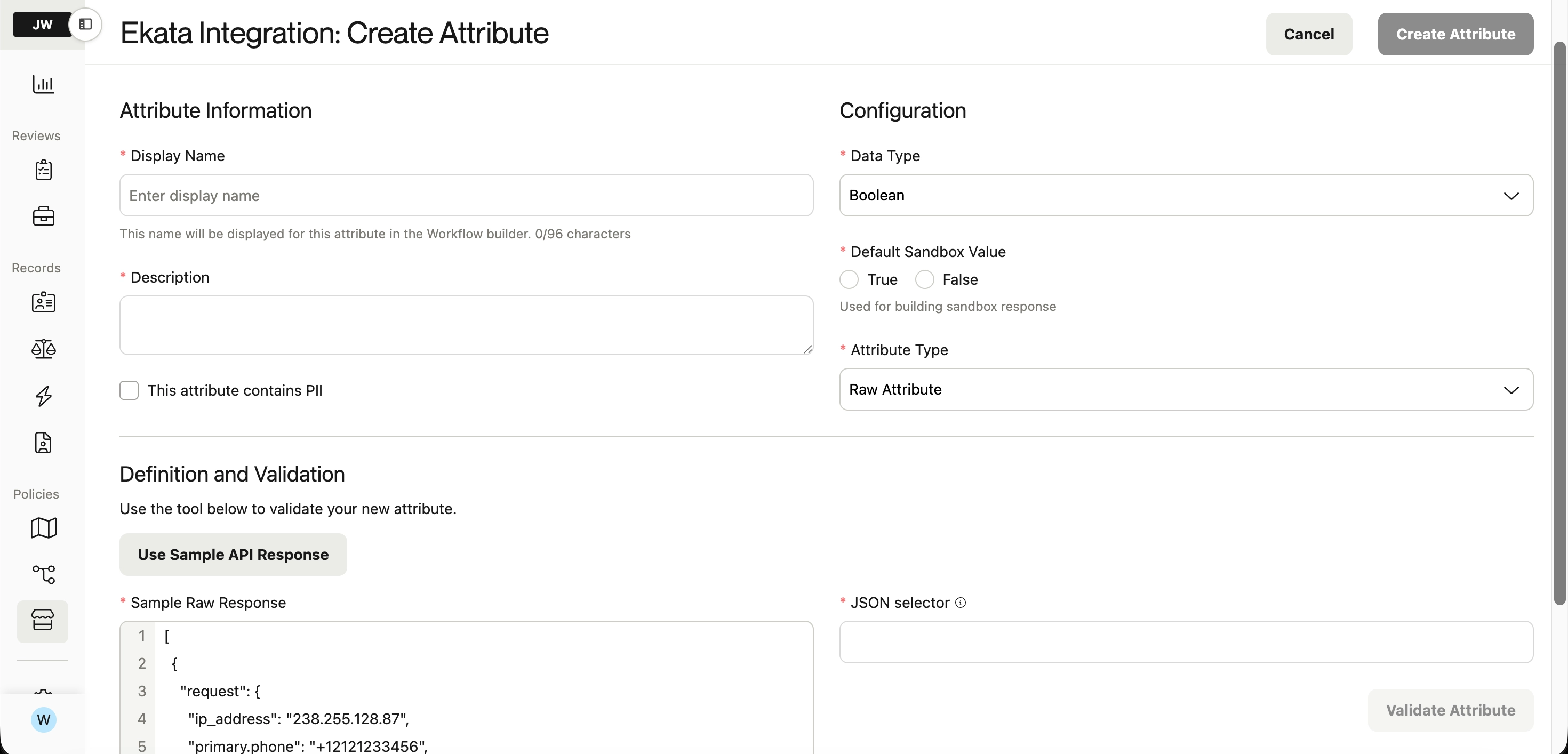
To modify your own custom attributes: check whether the attribute is used in an active workflow (filter the Attributes tab to Attributes in Active Workflows). If it is, duplicate it and edit the copy rather than changing behavior that's already live. Changes take effect in all workflows using the attribute as soon as they propagate. Evaluations already in progress finish with the old logic.
Alloy-owned attributes are read-only — you can't edit one directly, only duplicate it. Open the attribute's row menu, select Duplicate Attribute, make your changes, and test in sandbox before using it in production. The duplicate becomes your own custom attribute; the original Alloy attribute is unchanged.
Every integration also has a Changelog tab recording attribute creations and updates, with field-by-field before/after values and who made each change.
Core concepts
- Alloy attribute vs. custom attribute — Alloy attributes are created and maintained by Alloy and available to every client on that integration. Custom attributes are created by your team and visible only within your account.
- Selector uniqueness — display names must be unique within your account's attributes for a given integration. You can point two attributes at the same selector as long as their display names differ; you'll see a non-blocking warning if Alloy detects that. For JQ formatted attributes specifically, overlapping or duplicate selectors — including parent/child paths like
data.scorevs.data.score.value— are blocked outright, to prevent one attribute from overwriting another. - Account scope — attributes are scoped to a single integration and don't carry across integrations or accounts. If you run separate production and test accounts, recreate attributes in both, using identical display names and selectors so workflow cloning works correctly.
Advanced transformations (JQ)
Reach for a JQ attribute when a plain path isn't enough — arrays, nested objects, conditional logic, or fallback values. JQ is an open-source language for querying and transforming JSON; you can experiment with expressions in the JQ playground before using them in Alloy.
The JQ filter is a complete expression run against the integration's raw API response. The selector is where the result gets stored, and it must start with data.<your-account-slug>..
Extract the first element from an array
JQ Filter: .addresses[0]
Selector:  data.your-company.first_address
Result:    the first address from the addresses array
Extract a field from every object in an array
JQ Filter: [.addresses[].street]
Selector:  data.your-company.street_names
Result:    an array of all street values (wrap in [ ] — .addresses[].street
           alone emits a stream of values, not an array)
Conditional selection
JQ Filter: if .riskScore > 700 then "high risk"
           elif .riskScore > 500 then "medium risk"
           else "low risk" end
Selector:  data.your-company.risk_tier
Result:    converts a numeric risk score (higher = riskier) into a named tier
Handle missing values
JQ Filter: .optionalField // "unknown"
Selector:  data.your-company.optional_field
Result:    returns "unknown" if the field is null or missing
//also replacesfalse, not justnullor missing values — avoid it for boolean fields.
JQ filters can be up to 32KB, and sample responses used for validation up to 10MB.
Permissions
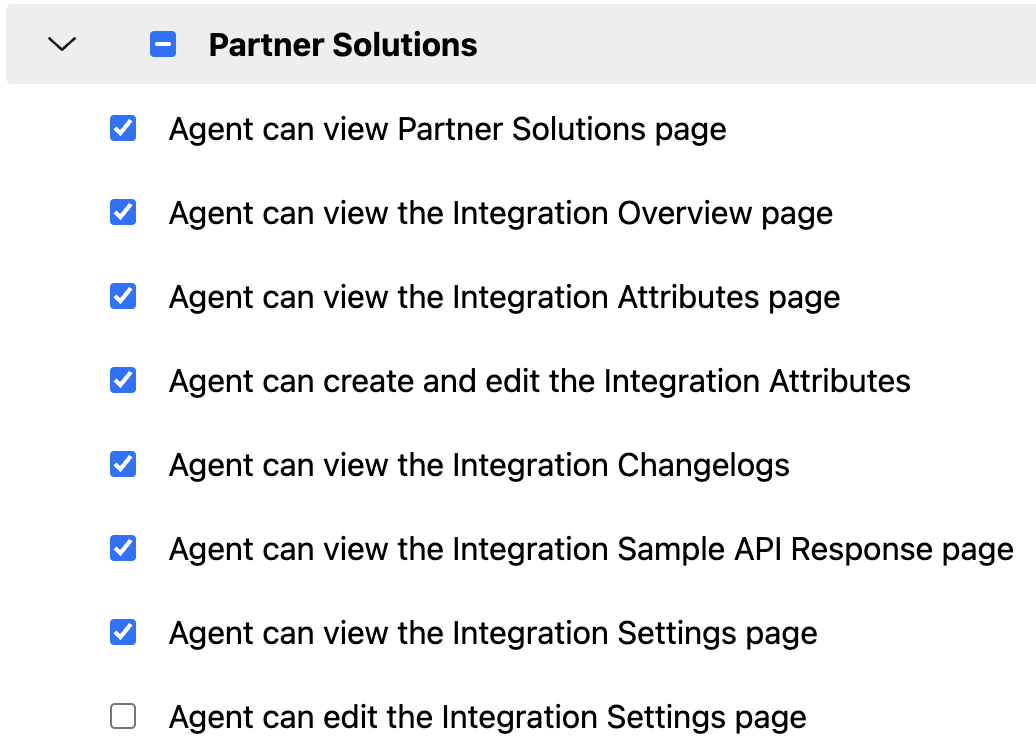
Admin roles have view, create/edit, and Changelog permissions for integration Attributes by default. Admins can grant or revoke each of the three permissions per role under Settings → Roles → Edit role → Permissions, in the Partner Solutions section. Alloy-owned attributes can't be edited regardless of permissions; they can only be duplicated.
When to use it
Use the global attribute library when Alloy's existing attribute already captures what you need. Create a custom attribute when you need a specific field, naming convention, or transformation Alloy's default set doesn't cover. Duplicate an attribute rather than updating it if you want to adjust its functionality without impacting active workflows.
Troubleshooting
My attribute returns null or empty values.
This usually means the selector path doesn't match the actual response structure (selectors are case-sensitive), the field isn't always present in the response, or a JQ filter has a syntax or logic error. Click Use Sample API Response to see the real JSON structure, re-check your path, and for JQ, test the filter incrementally to isolate where it breaks. For optional fields, set a default value so a missing field doesn't propagate as null.
I get a duplicate selector error when saving.
For JQ attributes, this means your selector overlaps an existing formatted selector (including a parent/child path) — choose a different one. For non-JQ attributes, it means the same integration, owner, display name, and selector combination already exists — either use a different display name or check whether an existing Alloy attribute already covers it.
Updated 28 days ago