

Workflow Types
A workflow is the core unit of decisioning logic in Alloy. It is a configurable container for the rules, data sources, and policy logic that get run against an entity or event to produce an evaluation outcome. Workflows can run in real time as part of a Journey evaluating an incoming application, or on a schedule as a Portfolio workflow, evaluating events that have already come in. Multiple workflows can be chained together inside a Journey to support more complex, multi-step decisioning — for example, running an applicant through onboarding and then credit underwriting as part of a single flow.
Every workflow you create in Alloy is tagged with a use case — a canonical label for what the workflow actually evaluates.
How it works
When you create a new workflow, you're asked a small set of structured questions.
- Use case: what job is this workflow performing? This is the core taxonomy classification
- Entity type: what kind of entity is this workflow evaluating: Person, Business, or Entity Group? (Not asked for use cases where it doesn't apply)
- Scope: is this an evaluation of a single entity, or a portfolio evaluation across all your entities?
- Evaluation type: Fraud and/or Compliance, where applicable.
- Name and description: free text.
Which of these options you see can depend on which features are enabled on your account. For example, if Entity Groups isn't enabled for you, "Entity Group" won't appear as an entity-type option; similarly, Portfolio scope only appears for use cases that support it.
There are 10 Workflow types. Available selections map to an underlying application type, which drives eligibility for downstream features:
| Use Case | Description | Supported Entity Types | Portfolio Eligible | SDK Eligible |
|---|---|---|---|---|
| Account Opening | Evaluates account opening by assessing the entity, submitted data, and related risk signals at the time of the application. | Person, Business | No | Yes |
| Credit Underwriting | Evaluates an applicant for credit products by assessing identity, creditworthiness, and policy risk at the time of application. | Person, Business | No | Yes |
| Credit Line Monitoring | Monitors post-origination credit line activity to detect risk changes, support line management, and trigger reevaluation when usage, behavior, or profile signals shift. | Person, Business | Yes | No |
| Transaction Monitoring | Monitors transaction events in real time or at scheduled times to detect suspicious activity, apply policy logic, and generate alerts or investigations when thresholds are met. | N/A | Yes | Yes |
| Ongoing Event Monitoring | Monitors events across the customer lifecycle to detect changes in risk, behavior, identity, compliance, or account activity after onboarding. Evaluates events in real time or on a scheduled cadence. | Person, Business, Group | Yes | Yes |
| Third Party Monitoring | Enrolls consumers, businesses, and related third parties against watchlists and other compliance signals, then triggers review, re-screening, or escalation when new hits or risk changes appear. | N/A | No | No |
| Third Party Business Registry Monitoring | Monitor businesses enrolled with a third-party business registry provider to evaluate changes as they are reported including updates to ownership, officers, addresses, or entity status. Use this for registry-sourced business data changes. For ongoing watchlist and adverse media screening, use Third Party Monitoring. | Group | No | No |
| Router | Receives an event or request and directs it to the right outcome. | N/A | No | No |
| Router (Legacy) | Receives a request and routes it to a different workflow based on logic rather than assigning an outcome. | N/A | No | No |
| Reconciliation | Reconciles signals across related entities into a single group-level risk assessment. | N/A | No | No |
Once you save a workflow, you can still edit its description at any time without creating a new workflow version. The workflow name, use case, entity type, and scope you selected at creation are not editable at this time.
Updates to Step Up Workflows
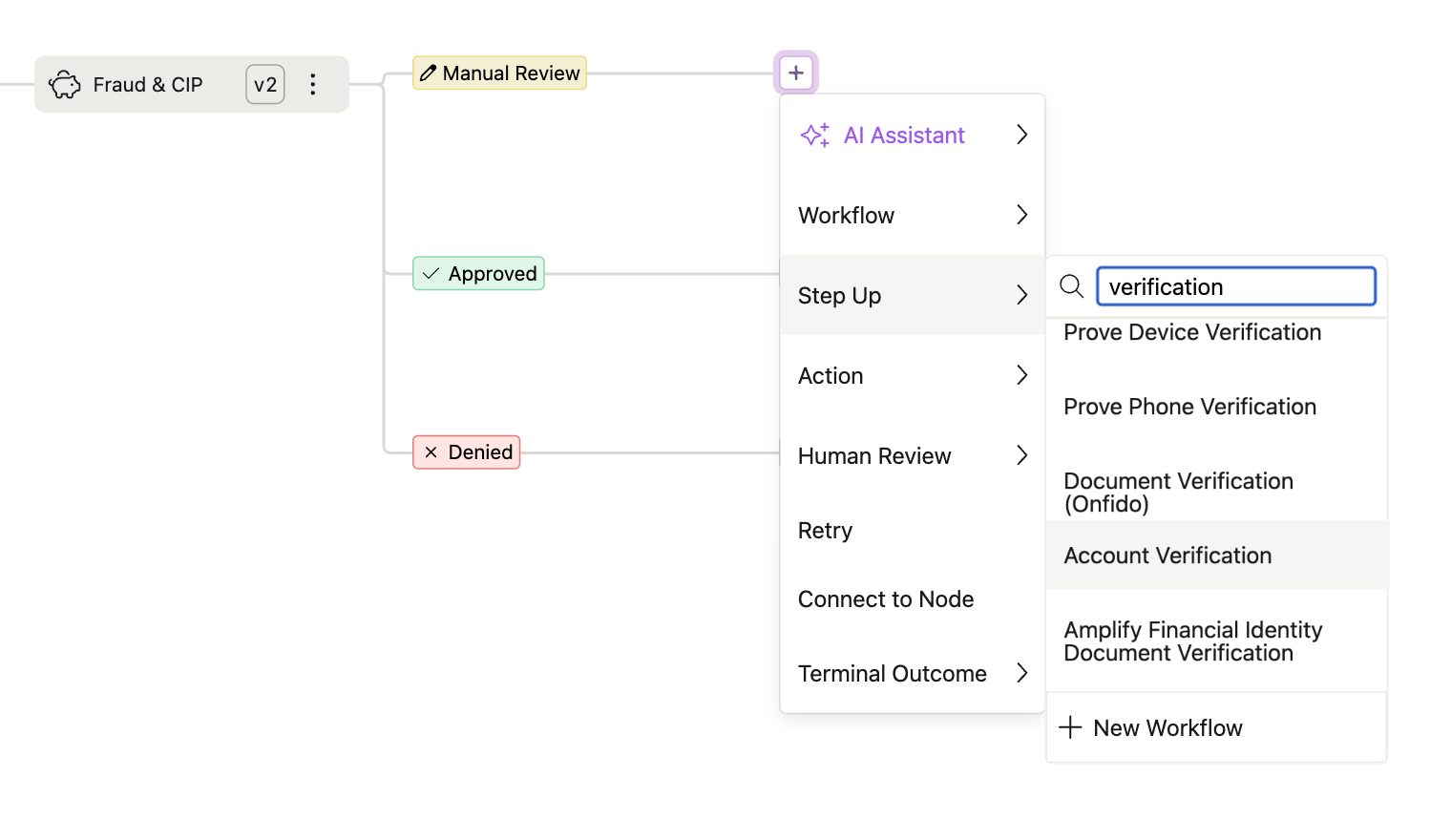
Previously, you could create a "Step Up" workflow type specifically to signal that the workflow collects documents or verifies devices via Alloy's SDK. That workflow type is being removed. Going forward, SDK usage is tracked as metadata on the workflow version instead of as its own workflow type: any of the use cases marked "SDK-eligible" in the table above can have the SDK enabled on it.
You'll see this reflected as a paperclip icon on the relevant workflow node in the Journey graph whenever a workflow version has the SDK configured.You can designate any Workflow with the SDK configured as a “step up” on the Journey editor. This will allow you to set expiration if a user abandons their application.
What's Changing for Existing Workflows
You don't need to manually recategorize your existing workflows. Alloy is backfilling every existing workflow into the new types.
- Onboarding (person or business) workflows map to Account Opening, for the corresponding entity type.
- Credit Underwriting and Pre-Qualification workflows map to Credit Underwriting, for the corresponding entity type.
- Line Management workflows map to Credit Line Monitoring, for the corresponding entity type.
- Transaction Monitoring workflows map to Transaction Monitoring.
- Device workflows map to Ongoing Event Monitoring, since no taxonomy type corresponds directly to the legacy "Device" application type.
- Recurring (webhook) workflows map to Third Party Monitoring. This use case has a single selection with no entity-type breakdown, so no person/business determination is needed for these.
- Reconciliation workflows map to Reconciliation. This use case also has a single selection with no entity-type breakdown.
- Workflows already configured as portfolio workflows remain portfolio workflows in the new taxonomy.
- Workflows already mapped to specific events keep that mapping: if a workflow has associated events, it's classified based on those events (generally into Transaction Monitoring or Ongoing Event Monitoring).
What's changing in the dashboard
The new workflow types will appear throughout the dashboard including the Evaluation List, Application queue, Alert list, Investigation queue, Workflow list, Journey filters, and Journey nodes.
Event mapping behavior is changing. Previously, the Events Settings page let you map any workflow to any event status, regardless of whether that combination made sense. Going forward, a workflow can only be mapped to events that are eligible for its use case (for example, only Transaction Monitoring workflows are eligible for the Transaction event type; only Ongoing Event Monitoring workflows are eligible for most other event types).
Updated 2 months ago